
How to Use Windscribe With Amnezia Wireguard

Rebecca Rosenberg
Mar 30, 2026

AmneziaWG is now built directly into the Windscribe app. No external clients, no config files, no contacting support. Just toggle it on and connect.
Follow these simple step-by-step instructions to make use of AmneziaWG on your Windscribe account.
Minimum app versions:
Desktop (Windows / macOS / Linux) v2.21.3+
Android v3.98.2061+
iOS v3.9.13+
How To Use Amnezia WireGuard via Circumvent Censorship
Desktop (Windows / macOS / Linux)
- Open the Windscribe app.
- Click the hamburger menu (☰) in the top left.
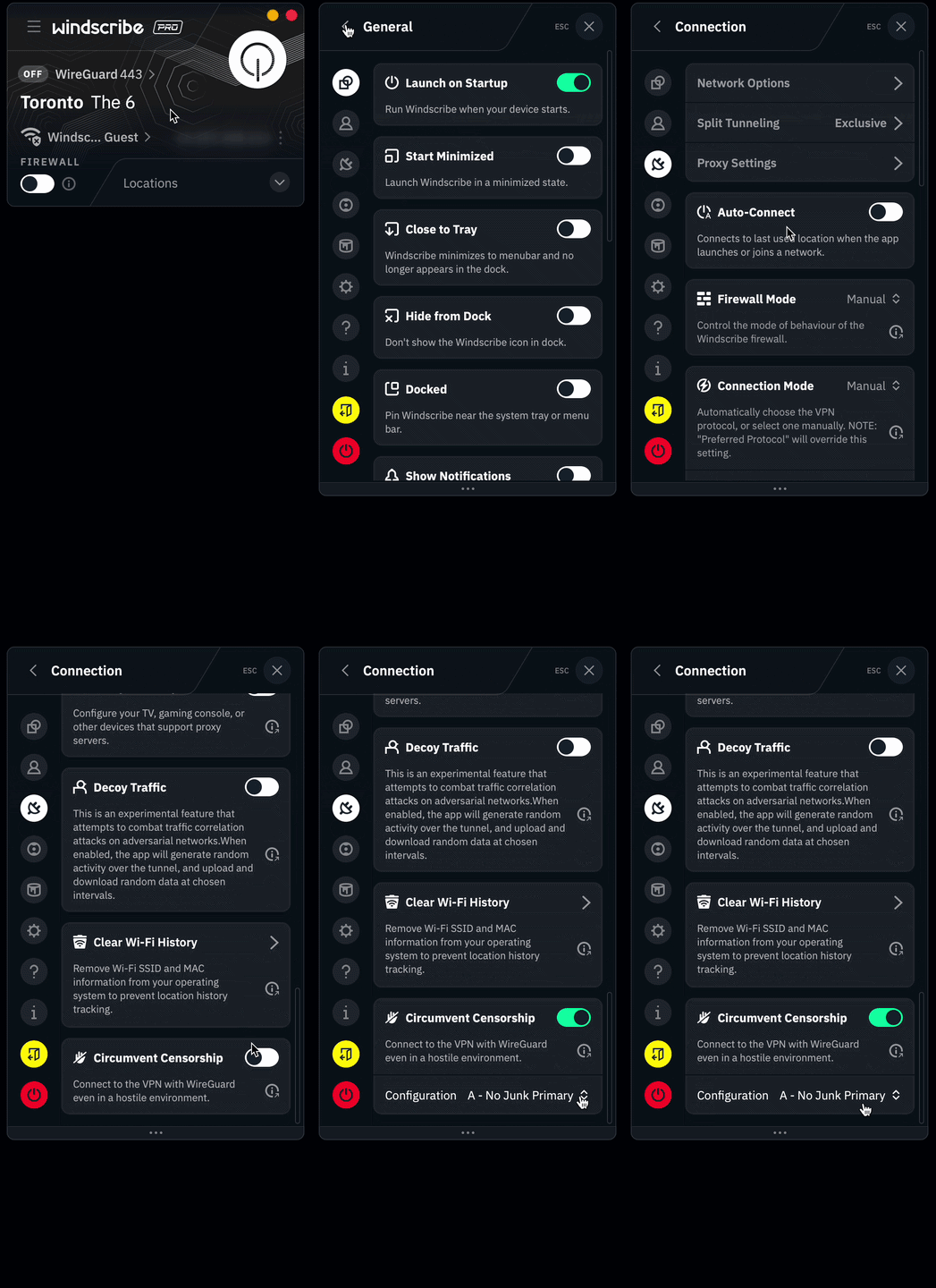
- Go to Preferences → Connection.
- Toggle on Circumvent Censorship.
- AmneziaWG profile options will appear below the toggle. (The default, A - No Junk Primary, works for most users. If it doesn't connect, try the next profile down the list.)
- Make sure your protocol is set to WireGuard.
- Connect to a server location. If you're in a censored region, try a few different locations.
Mobile (iOS / Android)
- Open the Windscribe app.
- Tap the menu (☰) in the top left and go to Preferences → Connection.
- Enable Circumvent Censorship.
- Choose an AmneziaWG profile from the options that appear. Start with A - No Junk Primary.
- Set the connection mode to Manual and select WireGuard as the protocol.
- Connect to a server location. Try switching locations if one doesn't work.
Additional Tips
- In some regions, particularly China and Iran, switching the WireGuard port from 443 to 80 can help punch through stubborn firewalls.
- The Amnezia profile options are arranged in order of most likely to work. If you're still having trouble getting connected, starting with A and working your way down the list is the best plan of action.
- We'll be continually updating these profiles in real time to ensure success, with no update to the app required.
Visit our blog to learn more about how to bypass VPN blocks with Windscribe.